Posts

So, you have a PDF that you’d like to put on either the Alumni, Give or DAR site(s), but you’re not sure if the aforementioned PDF meets the criteria for digital accessibility as laid out in the Americans with Disabilities Act Title II digital accessibility (“Final Rule”). 

Well, fear not! Before you send the PDF to DARCOMM to include on the website (or upload it to the site yourself), take these steps to ensure it is readable and accessible for those with disabilities. 

The very first step is to make sure you have Adobe Acrobat downloaded on your computer before beginning. Note: panels and icons may appear in different areas of the program if using an older Acrobat version. 

All DAR employees have access to Adobe Acrobat. If you need assistance downloading it to your device, please submit a support ticket with AIT. 

Basic Setup Information in Adobe Acrobat 

  1. Open Acrobat and click the See all tools feature 
  2. Search accessibility and open the Prepare for accessibility tool 
  3. Select and open the file you would like to check for accessibility 
  4. On the left-hand side under All tools>Prepare for accessibility, click Check for accessibility, then Start Checking 
  5. The accessibility report will show up on the right-hand side of the screen, and you can start fixing the errors 
    • Red (X) indicates something is wrong and needs to be corrected 
    • Blue (?) indicates there is a potential error and needs to be corrected manually 
    • Passed indicates the item is already correct and accessible; you can skip the steps for any categories below that already say passed 

Red (X) Items in the Accessibility Checker 

  1. Click the item with the Red (X) 
  2. Click the 3 dots next to the Accessibility Checker title 
  3. Click Fix 
    • The item may be passed and nothing else needs to be done 
    • A popup box may come up that needs attention. Many are self-explanatory such as confirming the Primary language as English 
    • If the popup box is more complicated, refer to the below categories 
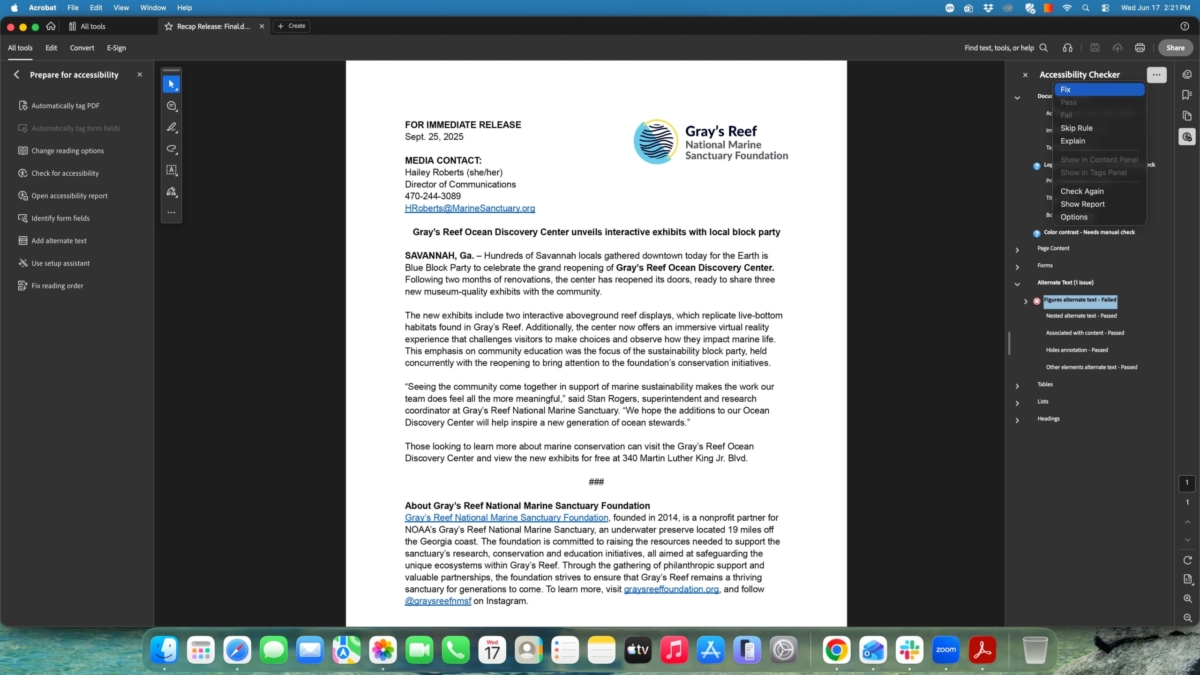
A screenshot of the location of the Fix button in the top right on the program Adobe Acrobat.

The Fix button is located within the Accessibility Checker on the top right of the screen.

Alternative Text with Red (X) 

  1. After clicking Fix, a box will appear that asks you to describe the image
  2. Describe the image to the best of your ability (complete for all images in the PDF)
    • For logos, put [brand name]’s logo. Ex: UGA logo or UGA Development and Alumni Relations logo.  
    • For images or illustrations, describe them. Ex: An otter floating on its back 
    • For purely decorative items that do not add anything to the context of the piece, click the box labeled Decorative figure. Ex: A swirl design or a floral element that makes the piece look aesthetic but would be excessive for a person with limited vision to hear described.
  1. Click Save & Close
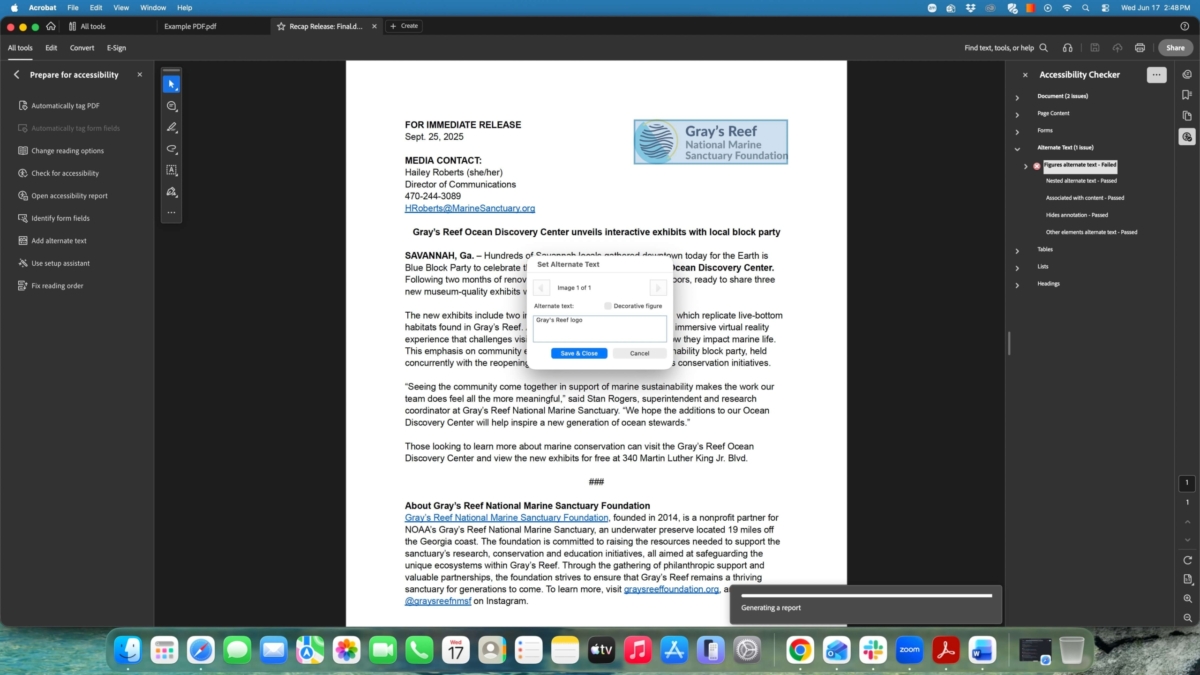
Screenshot shows to type a description of the logo in the Alternate text box in the middle of the program.

The description of Gray’s Reef logo in the Set Alternate Text box
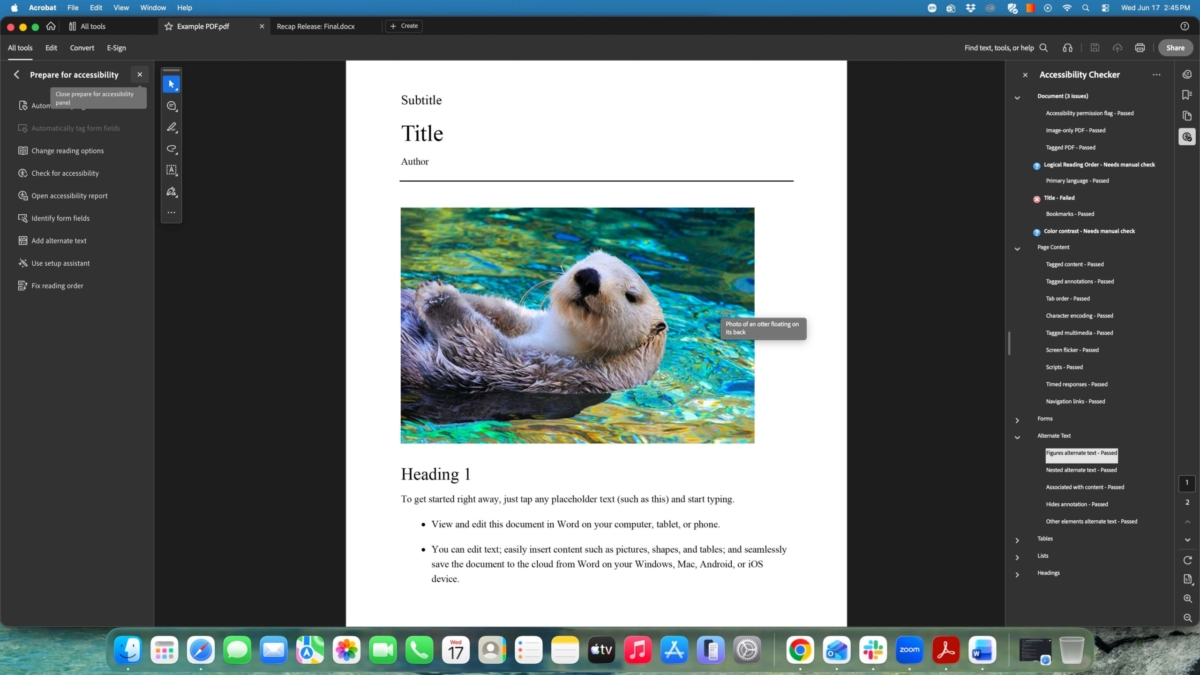
Screenshot shows mouse hovering over an image of an otter to display the alternate text.

The alternate text for the otter image can be seen by hovering over it.

Title with Red (X) 

  1. After clicking Fix, a box will appear asking for a description of the title 
  2. Type whatever you want to title the document 
  3. Ensure Leave As Is under the title box is unchecked 
  4. Click OK 

Color Contrast with Blue (?) 

  1. Go through the PDF and make sure that none of the text is too faint and that the colors of the text are easily read 
  2. If something seems too faint or has hard to detect colors, change the font itself or the font color to something like solid black or navy, so that it is accessible to readers 
    • This is more subjective but ensures people with limited vision or color blindness do not struggle to detect the content of the piece 
    • There may not be anything to change if everything seems easily detected already
  1. Once completed, select the 3 dots next to the Accessibility Checker and click Pass 
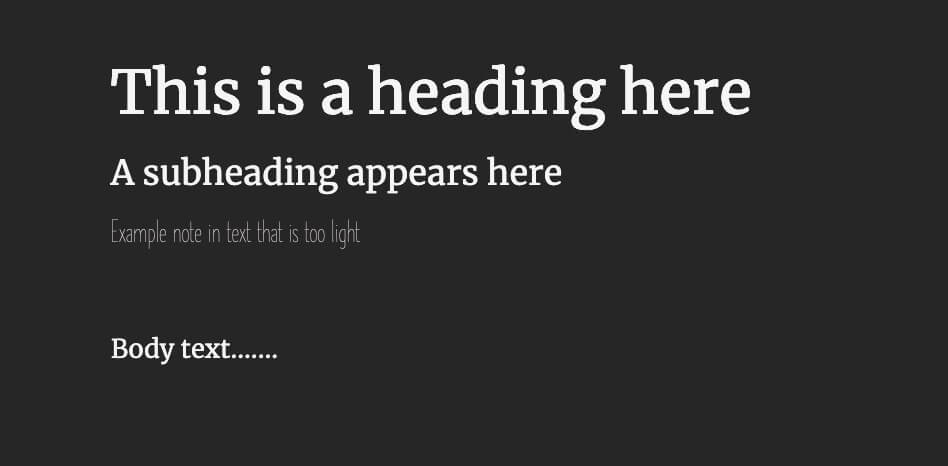
Screenshot shows three lines of legible text and one line of text that is too faint to detect.

The 1st two lines and the last line of text appear legible but the 3rd line is too faint for some readers to pick up.

Logical Reading Order with Blue (?) 

  1. Click the item labeled Logical Reading Order 
  2. Click Fix reading order in the left-hand panel or click the Z-shape icon in the far-right column 
  3. Click Show Order Panel 
  4. Go through each numbered item and make sure it is the order you want the piece to be read or processed in (do this for all pages of the PDF) 
    • If there is only one item in the list or the PDF is not divided according to headings, text, images, etc. refer to the below category on scanned PDFs
  1. Click on any item you want to be moved up or down the reading order and drag it to the new place on the list 
    • Mark any images/items that are decorative or do not add to the context of the piece as Background/Artifact in the Reading Order panel 
    • Mark any numbered items that are blank spaces and do not contain content as Background/Artifact in the Reading Order panel 
  1. Once the order is correct, you can close the Reading Order popup panel, and click the accessible person icon in the far-right column or click Open accessibility report in the left-hand panel 
  2. With Logical Reading Order selected, click the 3 dots next to the Accessibility Checker title and click Pass 
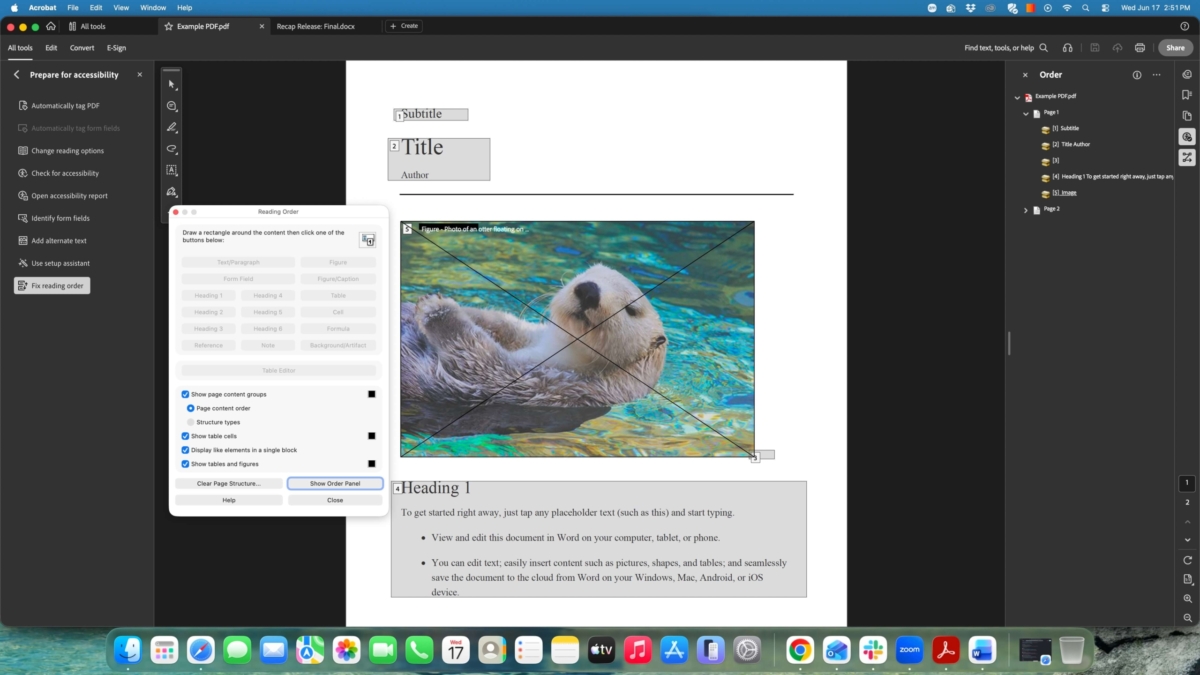
Screenshot shows where to find the Show Order Panel button within the Reading Order popup on the program.

The Show Order Panel button can be found within the bottom right of the Reading Order popup.
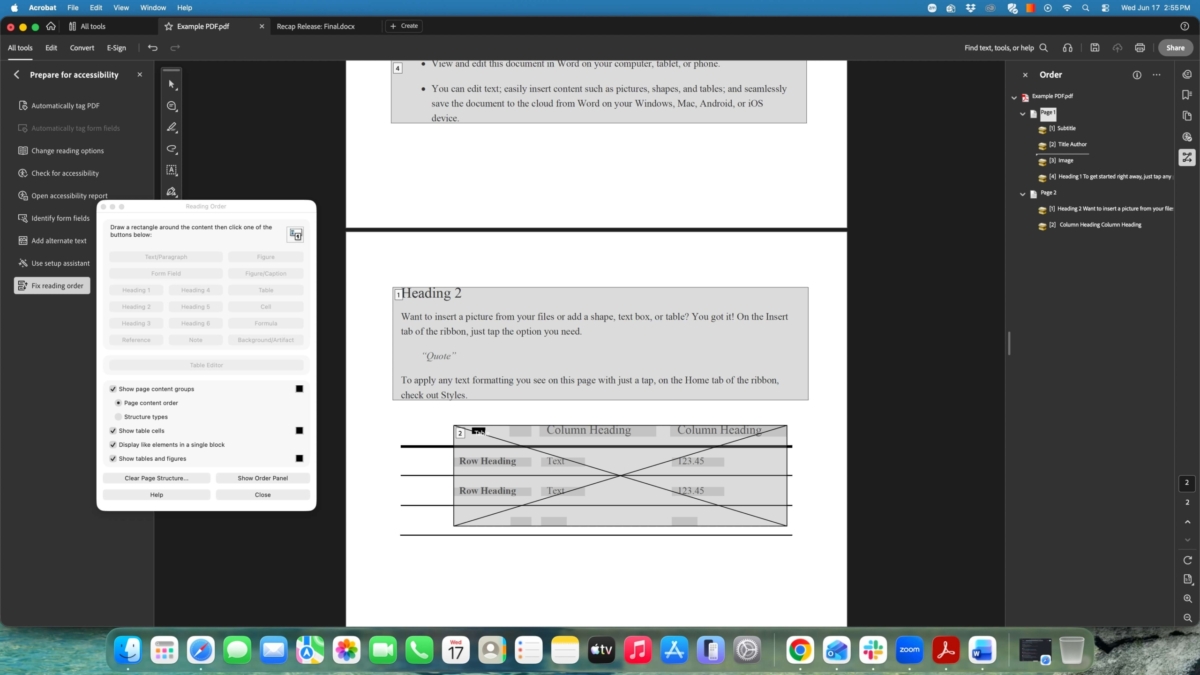
Screenshot shows that items on a PDF can be found in numbered order in the right-side panel of the program.

On page two of the example PDF, the numbered items can be found in the right-side panel and be adjusted according to the order they should be read in.

Scanned PDFs or ImageOnly PDF 

  1. Click the item labeled Image-only PDF 
  2. Click the 3 dots next to the Accessibility Checker title and click Fix 
  3. In the popup box, change the output to Editable Text and Images 
  4. Click OK 

Logical Reading Order for Image Only PDFs 

  1. Ensure the steps in the previous category have first been completed 
  2. Click Fix reading order in the left-hand panel or click the Z-shape icon in the far-right column 
  3. Click the 3 dots next to the Order title  
  4. Click Show page content groups then Structure types 
  5. Manually go through and categorize each element of the piece by holding and dragging the mouse over the individual element on the page 
    • Start with the first heading and after dragging the mouse over it, click Heading 1 in the Reading Order panel 
  1. Continue to go through each element on the page and label it accordingly 
    • Ex: Figure for an Image, Text/Paragraph for body text, Background/artifact for irrelevant additions, and so forth 
  1. After labeling everything, ensure it is in the correct reading order 
  2. Complete steps 6-7 under the Logical Reading Order with Blue (?) category above 
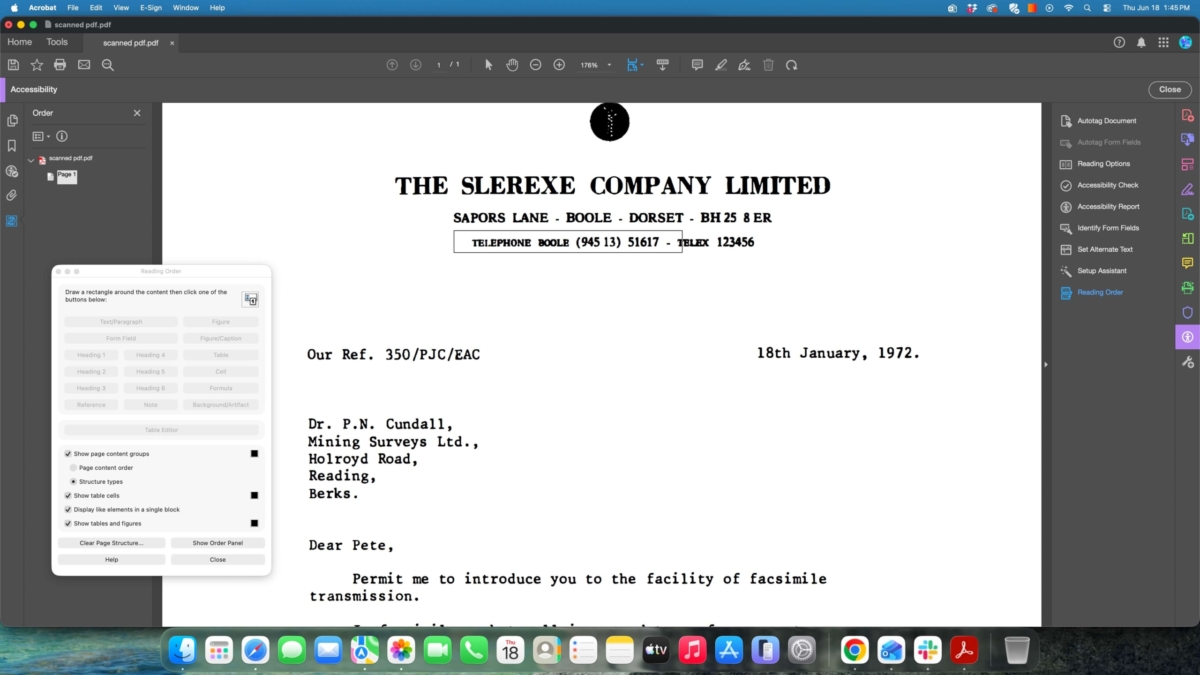
The screenshot shows a mouse cursor being dragged over a line of text in order to properly categorize the content type.

In the example scanned PDF, the cursor is being dragged over the 3rd line of text, so it can be categorized.
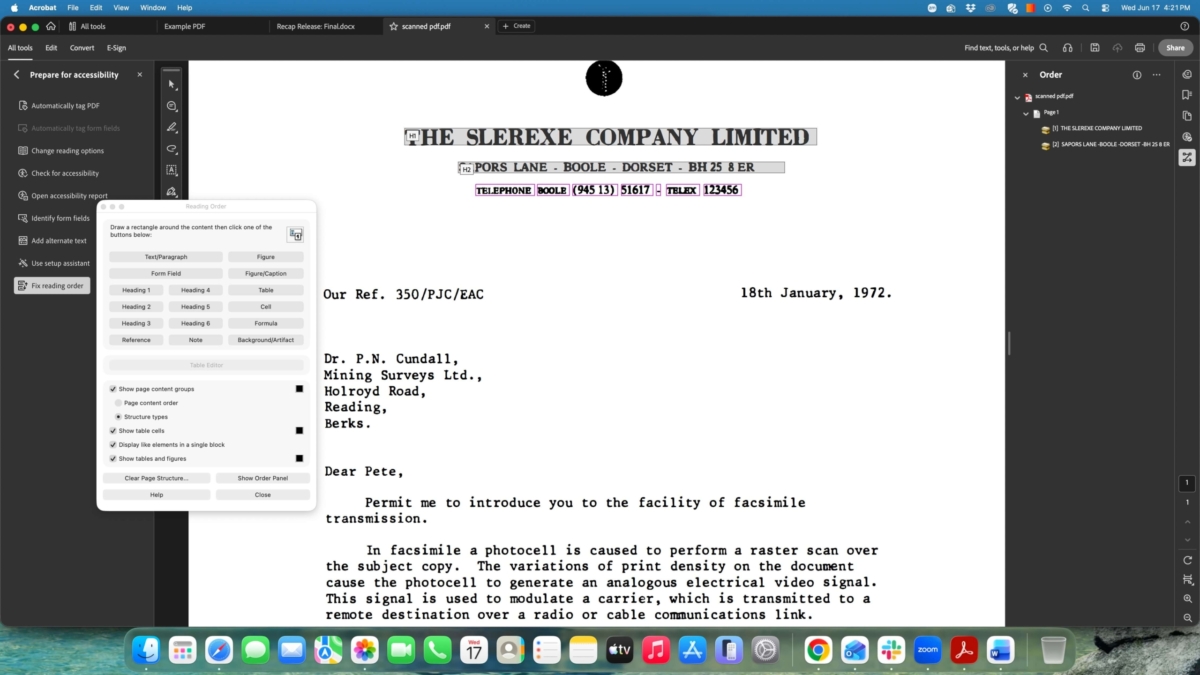
The screenshot shows the content options available to categorize the selected text in the program.

After dragging the cursor over the 3rd line of text, one of the content buttons can now be selected to categorize the text.

Want to learn more about digital accessibility? Check out the Accessibility for Content Creators course in PEP!


, ,
Marisa Castengera headshot
by Marisa Castengera

We’re lucky in DARCOMM that our partners across the division take the University of Georgia visual identity seriously and are supportive when it comes to adhering to best practices. If you’re new to DAR, please take a moment to browse brand.uga.edu. 

Registered vs. Trademarked 

While UGA’s current visual style was launched in 2016, our logos were not granted the status of officially registered trademarks until 2022. The ™ was then updated to the ® on all UGA logos.

Side Note: You can Google to learn more about the difference between trademarks and registered marks, but in a nutshell: a ™ holds no legal meaning, but indicates that a company plans to register that mark with the U.S. Patent and Trademark Office (USPTO); ® means the trademark has been registered with the USPTO. 

Thanks to everyone who helped us transition logos on materials, webpages and other collateral from the ™ to the ® versions. This means that the files you have on hand are probably correct.

As you go about your day-to-day use of files that include the UGA logo, please help keep an eye out to ensure that all UGA logos feature an ® instead of the ™. If it does not, contact Marisa Castengera for assistance with a replacement file.

Reminder: Logo Requirement

When it comes to using a UGA logo, please note that any merchandise (giveaways, swag, etc.) that is larger than 2″ in diameter is required to feature an institutional logo on it. This can be helpful to keep in mind when planning and coordinating merchandise orders. 

Protected Verbiage

Did you know UGA has many phrases/verbiage that are protected? We use many of these terms on a daily basis, so it’s easy to forget about when using them in promotional materials. Some of the terms that should be accompanied by a trademark or registered symbol include Dawg® or Dawgs®, Georgia®, or even “Go You Silver Britches™”! The full list can be found under the Registered Trademarks section of brand.uga.edu. 

Another recent development is that the phrase “Ain’t Nothin’ Finer” is being exclusively used by the Redcoat Marching Band to reclaim and elevate the phrase to better reflect the pride, tradition, and excellence of their role in the Georgia game day experience. In support of that effort, the phrase is currently not available for broader trademark use outside of their official materials. 

Questions 

You can access UGA logos through MARCOMM’s Download Center and DAR logos on the DAR Resources page. DARCOMM is always available to provide support or clarification, but this reminder of rules and guidelines surrounding logo use is always available online for your reference. 

Please reach out to Marisa Castengera if you have any other questions! 

,
Rachael Andrews headshot
by Rachael Andrews

So, you want to highlight students in your marketing materials to show the impact of giving to UGA?  

That process looks a little different now, but fear not! DARCOMM is on the case.  

The U.S. Department of Education has released new guidelines on the implementation of the Family Educational Rights and Privacy Act (FERPA) to better protect students’ information in an ever-changing digital and technological landscape.  

As provided in a recent meeting for campus PR specialists and brand communicators, representatives from the UGA Office of the Registrar and UGA Legal Affairs shared this new guidance and how it may pertain to communications that originate at the university.  

From the U.S. Department of Education 

A school may disclose “directory information” to third parties without consent if it has given public notice of the types of information which it has designated as “directory information,” the parent’s or eligible student’s right to restrict the disclosure of such information, and the period of time within which a parent or eligible student has to notify the school in writing that he or she does not want any or all of those types of information designated as “directory information.” 34 CFR § 99.3 and 34 CFR § 99.37.

To spare you all from some incredibly riveting legalese, the gist is: if you are using any of the following student directory information in marketing/communication materials, you MUST have that student sign a consent form that follows the new FERPA guidance: 

  • Student’s name 
  • Hometown 
  • Institution-based email address. Under this category, an institution assigned email may be disclosed without consent only to other, current students. In addition, students may not request email listings of the entire student body or segments thereof, except for academic purposes. 
  • Major field of study 
  • Enrollment status (full-time, part-time) 
  • Participation in officially recognized activities and sports 
  • Dates of attendance 
  • Degrees, honors, and awards received 
  • Thesis/Dissertation title 
  • The most recent educational institution attended 
  • Height and weight of athletes 
  • Class level 

Right now, you may be thinking, “Well, what changed? Everything was fine before!” And it totally was. Kind of. Open records requests were making student phone numbers and emails available to the public to solicit students and their parents. This protects that information and their privacy. 

You may have even more questions than you did before you started reading this incredibly well-written blog. We did, too! Here’s what we learned:  

  • This does not apply if you take a photo at an event (like Dawg Day of Giving, for example) and a student just happens to be in the photo — it’s only when any of the identifiable information above is included with a photo! 
  • If you already use some sort of consent form for your work with students, please make sure that it includes FERPA language and that it requires a signature from the student — digital or otherwise. 
  • A checked box on a consent form is not sufficient for the new FERPA guidance — there must be a signature from the student! Digital signatures are acceptable if you decide to convert the consent form to a digital format. 
  • If you have any questions about a consent form you are currently using, it’s always a good idea to double-check with Legal Affairs. 
  • If you are looking to highlight students who receive a scholarship — and you would like them to talk about the impact of that scholarship on their academic journeys, for example — Caitlin Lacey in the Office of Donor Relations & Stewardship has a tried-and-true process for obtaining consent and contacting those students. Work with her first! 

If you have not been using a consent form for your work with students, and that work is primarily marketing-based, DARCOMM has developed a FERPA-compliant likeness release form that you are free to use. 

More information about FERPA can be found at the Office of the Registrar’s website. 

,
Author, Amanda Qubty
by Amanda Qubty

Are you holding on to UGA logos in the Everybody drive, on your desktop, or maybe in your pocket? I’m here to make the big announcement: DELETE ‘EM!!

No, seriously. Select all, right-click, delete. Pretty please. It’s the C.O.O.L. thing to do.

The UGA logos are now officially registered, and the ™ has changed to ®. MARCOMM has updated all of the master logos on the Brand website, and I highly recommend downloading the updated files from the Download Center.

DARCOMM is currently working with MARCOMM to update all the DAR-related logos to the Registered mark as well. You should be notified of those as soon as we get the updated logo files.

Please note: starting January 1, 2023, all UGA logos, across the board, will have to have the Registered mark. If you are ordering promo items now that you foresee will live past January 1, they will need to be made with the ® now.

2023 Update: All official logos have been updated with MARCOMM’s assistance. If you need specific logos, please reach out to me. Consider everything you use on a daily basis – emails (look at your headers and footers), Word documents, PowerPoint templates, websites, stationery, promo and swag item orders, email signatures, and on and on and on. They must all change!

Contact Amanda Qubty in DARCOMM if you have any questions.

Thanks!

Tyler Daniels, Author
by Tyler Daniels

As we happily say “good-bye” to 2020, we welcome a new direction for development-related messaging and visual style.

While our commitment to remove barriers and open doors, enhance the learning environment and solve grand challenges will continue; we’ve provided new and refreshed resources to help you tell the story.

Our new messaging map organizes key messages into a hierarchy to ensure that our communications are clear, consistent and compelling. It can serve as a reference point when developing messaging for funding priorities. As our priorities become more specific, our messaging will become more effective – pointing toward relevant outcomes for our audiences – improved learning, leadership, and quality of life.

The messaging map prescribes what we say. Our voice is how we say it. The Development Style Guide includes our brand narrative, which incorporates an authentic voice that focuses on the concept of “tomorrow.” It also includes a new visual style that leans into the overall UGA brand and incorporates a range of illustration styles, which can be used depending on the tone and personality of the project.

These resources can be found on the DAR resources webpage. They will guide our voice and visual style as we all work toward a better tomorrow for our community, our state and our world.

Leah Hansen image
by Leah Hansen

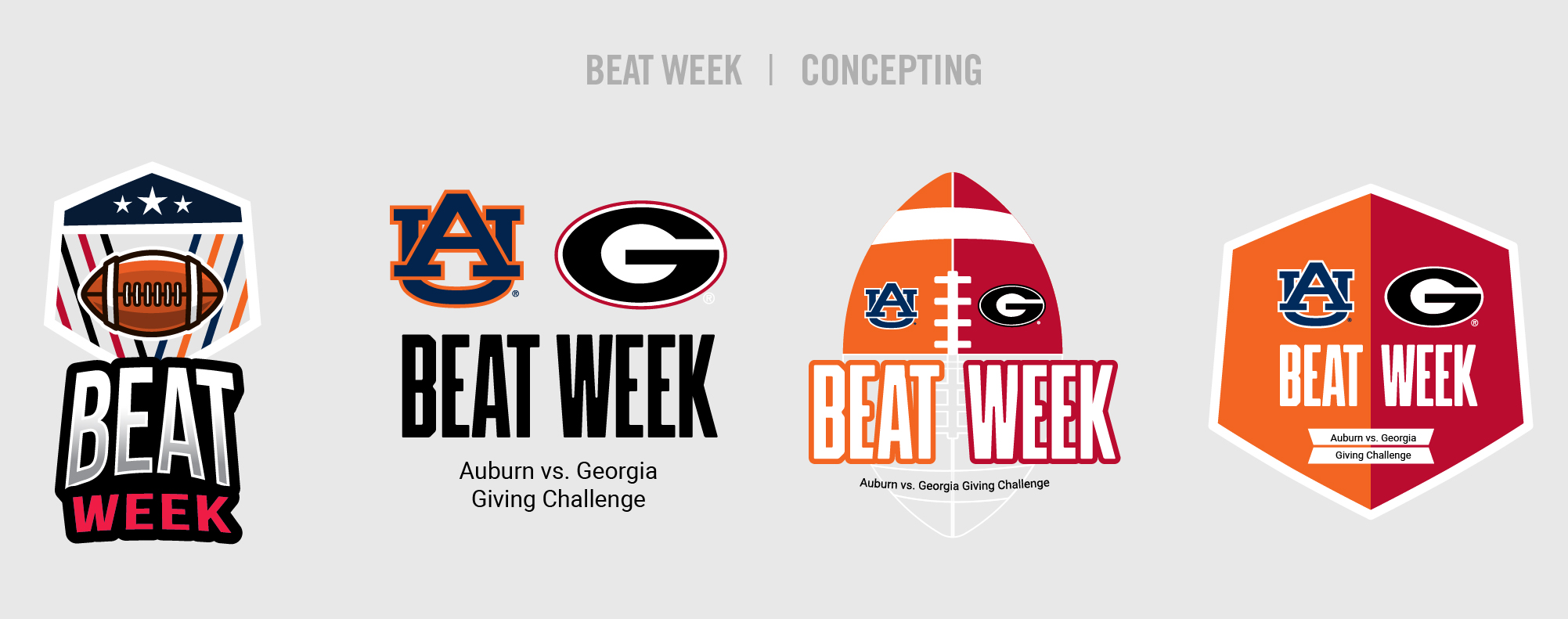
Imagine a client came to you and said, “We need 3 logos for a campaign that is launching in 3 weeks. GO!” How would you even begin to get started? That is a question that graphic designers have to ask themselves daily.

Starting from a blank canvas feels daunting every single time. The way I get around the “Staring at an empty screen for hours on end” feeling is to iterate, iterate, iterate! I put something–anything–on the canvas to get myself started. Sure, it is often terrible looking, but that is okay, because no one else will ever see it. I then copy and paste my canvas repeatedly and make minor and major changes to it until it is at a place where I’m comfortable sharing with others (because my very first options are definitely not worthy of outside viewership).

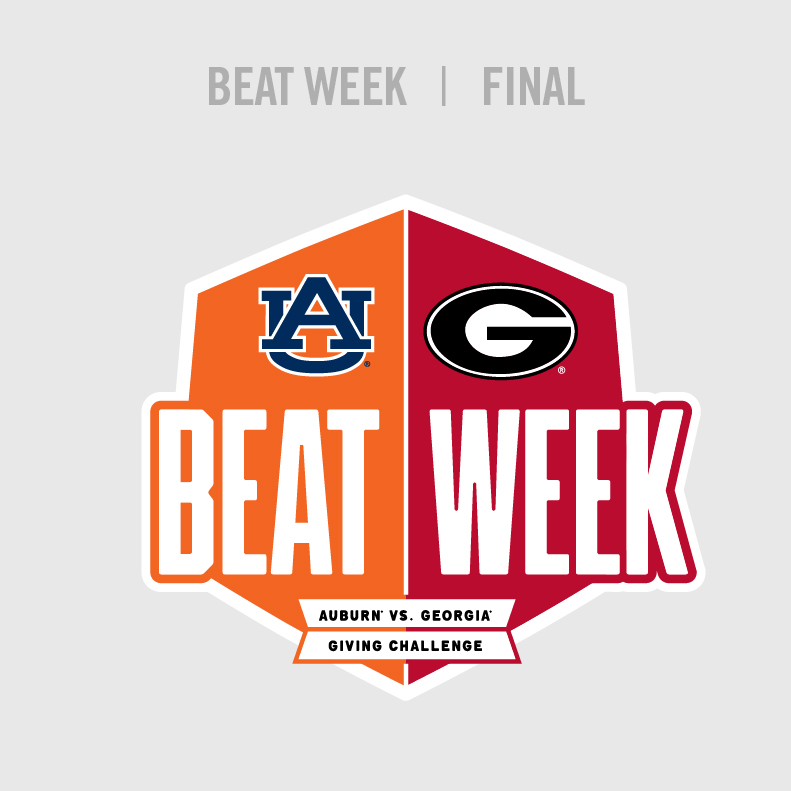
As the lead designer for both UGA’s and Auburn’s graphic efforts for our recent Beat Week Challenge, I found myself in a very tight spot. I was on the hook to design new wordmarks for not one but two major universities, and on an extremely quick timeline! Employing my love of iterating proved to be the key to success on this project.

Beat Week 2021 Ideas

There is solace in acknowledging that my first idea is almost never going to be my best idea. This attitude frees me to fail in the beginning, knowing that the final result will be much better.

After painfully working through a ton of not-so-great ideas, I emerge with the final product that the world will see.

Final Design for Beat Week 2020

The key to successful design is tons of iteration! Even when you think your idea is terrible, with enough refining, you’ll get to a place you’re proud of. You may not be a designer, but maybe trying an iteration strategy will ease and improve your work, too.


, ,
Edwin Hammond author photo
by Edwin Hammond

When it comes to connecting with your audience, you gotta keep it real. One of the most important aspects of storytelling is authenticity. With the videos we create, our goal is to tell a compelling story that connects with and engages our audience. Sometimes that involves a highly produced and polished video. Other times, things are much more organic and simple.

When you are hoping to maximize authenticity, a less polished and more organic video is the way to go. The connection between the viewer and the subject of the video is much more direct, authentic and strong when it’s something the subject recorded themselves. We have seen a lot of success with this type of video with student messages to donors thanking them for their contributions to the University. It’s a much more personal message, and the viewer is highly engaged.

As much as we would love to produce amazing videos for every need that arises, sometimes the answer is to just keep it simple. Never underestimate the power of authenticity to connect with your audience.

, ,
Jessica DeAngeles author photo
by Jessica DeAngelis

A little over five years ago, UGA underwent a brand restructure. The idea was to create a distinctive look, feel, and voice—one that people will immediately recognize as the University of Georgia. As designers, having clear and defined guidelines helps us stay true to the brand.

A common inquiry that we get from our different units is, “How do we stand out from the overall UGA brand?” It’s not that units want to be outside of brand guidelines; it is more that they want to find their own identity within the brand. They want their specific audience to see their marketing materials and know that, not only are they part of UGA, but they are specifically UGA Alumni Chapters, UGA Parent Giving, UGA Student Alumni Council, and the list goes on…

To help our units find their own distinctiveness and brand their materials, we have created style guides that give an overview of the unit’s audience, goals, key messaging, personality and visual identity. A style guide aids DARCOMM when creating messaging and promotional materials, and also provides the unit with a starting place to help them create their own materials by suggesting headlines, key messaging points and giving them a visual guide. The more connected and concise your materials look and the language feels, the clearer and stronger your message will come across to your audience.

Two examples of effective use of the style guides are UGA Alumni Chapters and UGA Parent Giving.

UGA Alumni Chapters

Alumni Chapters’ audience includes young alumni, current students, and established alumni. Their key message is, “Whatever your next chapter, your Bulldog family will be there.” See the style guide.

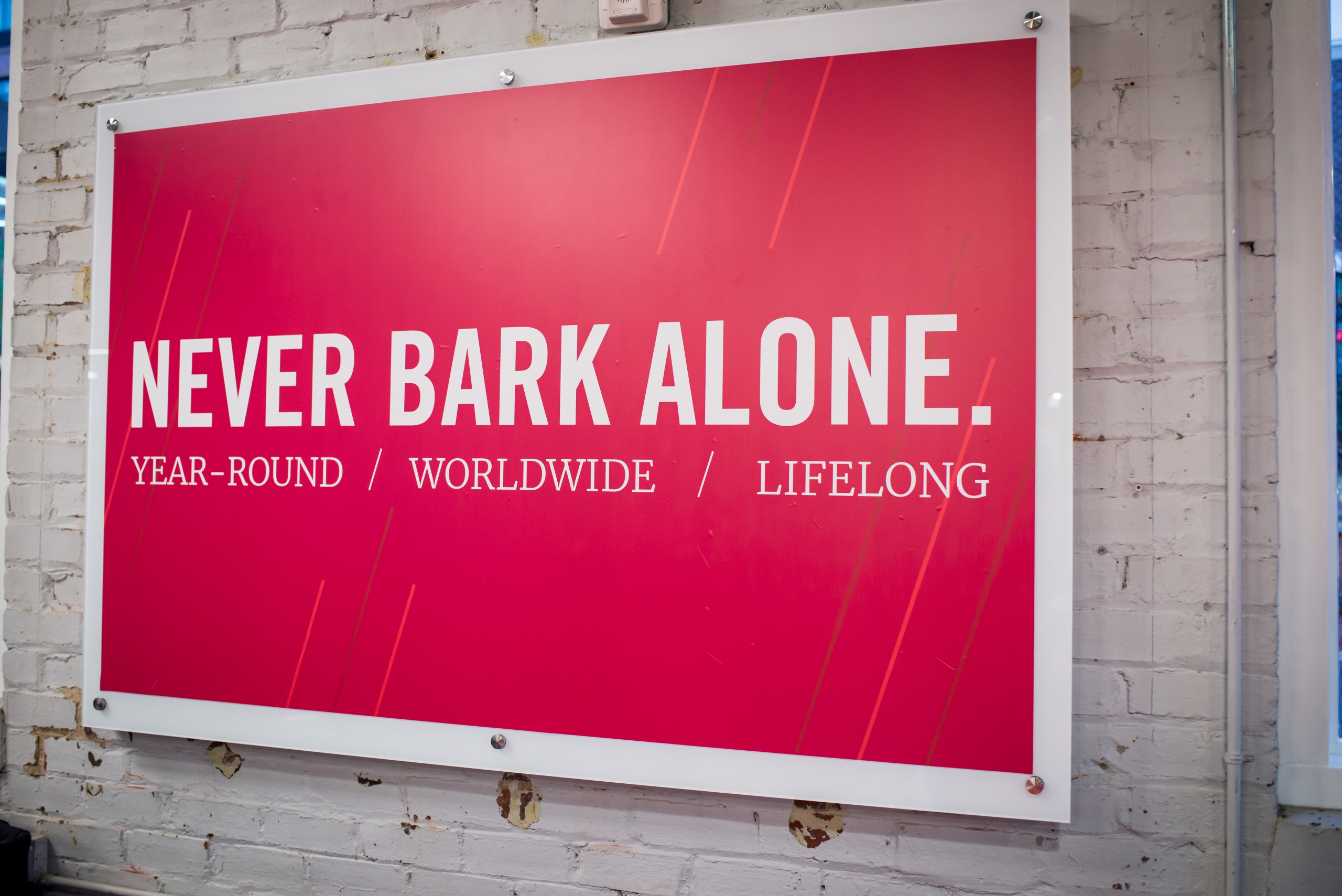
It was our job to create a voice, within the UGA brand, that shows UGA spirit, connection among the Bulldog Nation, and the support that offered when you are part of the Bulldog family. We accomplished this with headlines such as “Bulldogs never bark alone,” “Our commitment doesn’t end after Athens,” and “As one chapter ends, a new one begins.”

Visually, we focus on traditional colors such as Bulldog Red and Arch Black to give the sense of tradition, but we also bring in secondary colors such as Glory Glory and Olympic to give off energy that matches the younger audience. The addition of a script font as a graphic element creates a feeling of a warm personal touch. Check out the examples below.

UGA Parent Giving

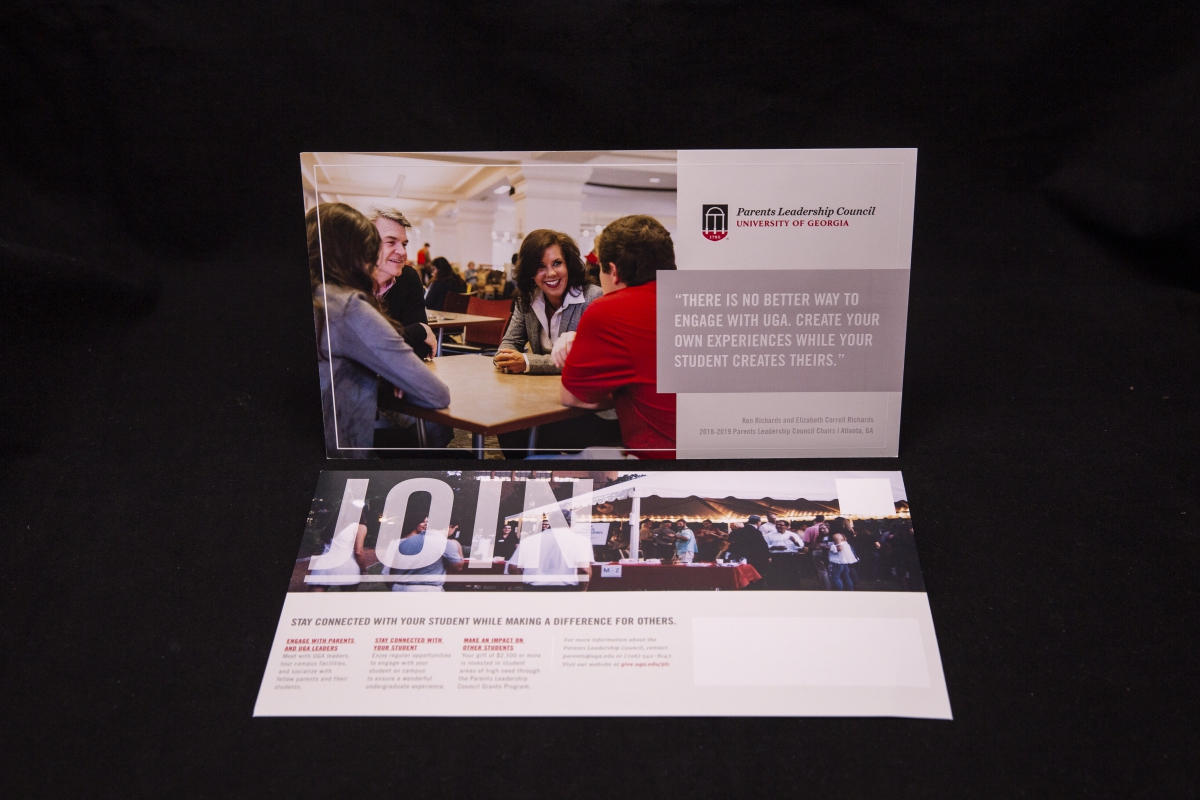
Parent Giving’s audience are parents of UGA students and current Parents Leadership Council members. Their core message is “Join a philanthropic community that helps you stay connected to your student while making a difference for others.” See the style guide.

It was our job to create a voice, within UGA brand, that shows families engaging with the University, other families, their student(s) on campus and making an impact on campus. We accomplished this with headlines such as “Ensuring a world-class learning experience,” “Committed to removing barriers and opening doors,” and “Helping students thrive. That’s our commitment.”

Visually, we focus on traditional colors such as Bulldog Red and Arch Black to establish the sense of commitment to the university. Then, we bring in colors from our neutral color pallet, Sanford, Creamery and Odyssey, to help the brand feel warm and inviting.

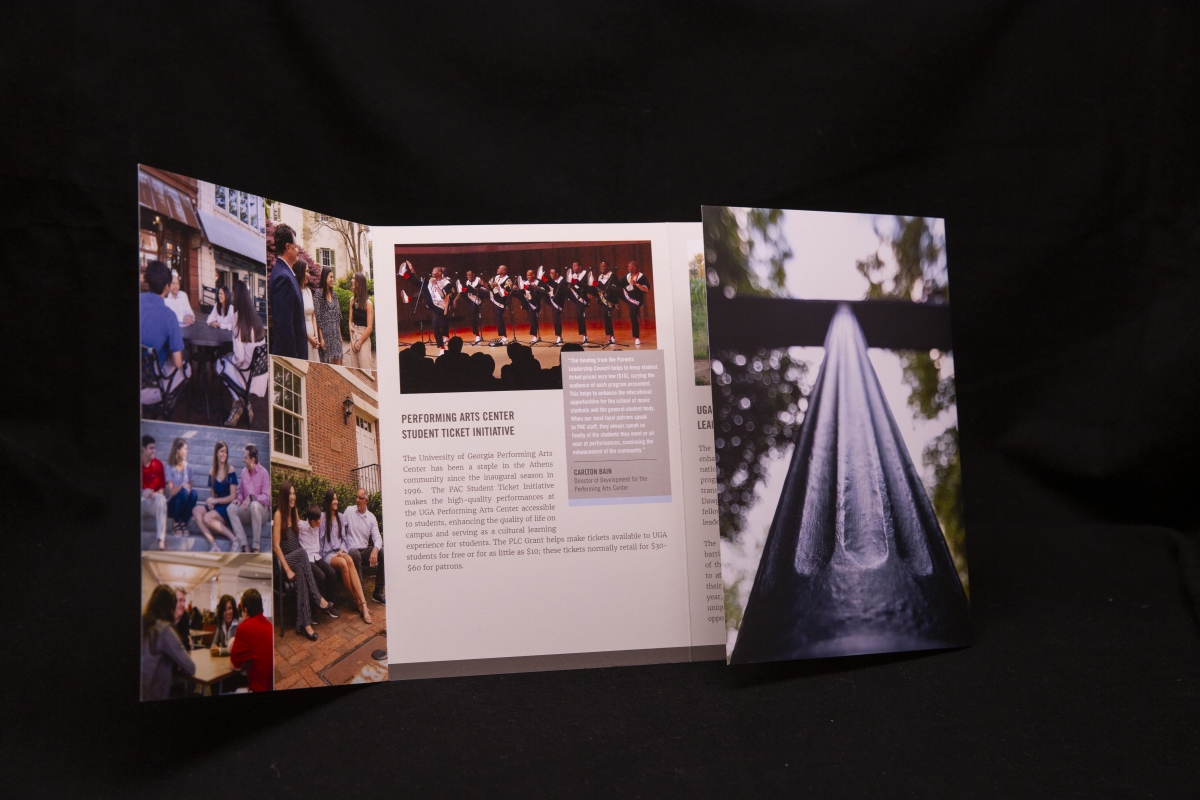
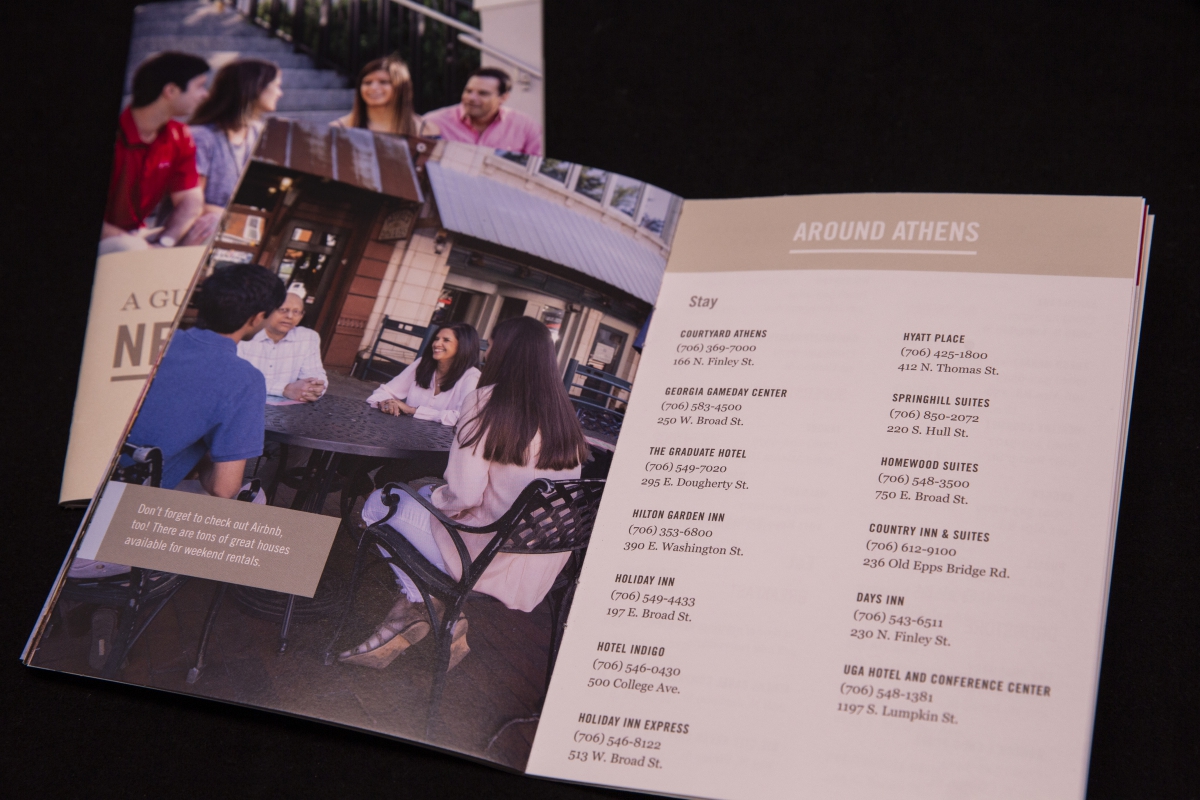
A large part of the Parent Giving style relies on the photography. We want our audience to see themselves in photos of happy, smiling families on campus. See examples below.


, ,
Amanda Qubty author photo
by Amanda Qubty

Now this is a story all about how

The Alumni Awards Luncheon got flipped-turned upside down

And I’d like to take a minute

Just sit right there

I’ll tell you how it became an opportunity to innovate and celebrate these honorees anywhere


In America, the pandemic was all the rage

Alumni Events + Outreach and DARCOMM worked together to figure out a new way to engage

Not at all chillin’ out maxin’ relaxin’ all cool

We quickly came up with a plan using a really neat tool!

A video brochure with the videos of all the honorees

What an excellent way to steward and show each of them how much they mean[s]


Budgets were cut and tensions were high

But it all worked out and they looked so fly!

Honorees loved them

Collaboration between teams was cool

Innovation was happening

They were such a hit we were contacted by another school

[…to give them tips and info because they want to make video brochures too!]


Check out images from last year’s event here, and ooh and ahh at those beautiful floral arrangements. It’s almost like you’re not in Tate Grand Hall! Just joking, you are.

NOW take a look at this year’s video brochure! Each button on the bottom row has the 2+ minute video that DARCOMM, Alumni Events, and Alumni Outreach worked tirelessly on before and during the pandemic. Hop on over to the Alumni site to check out this year’s honorees and their videos.


Pardon my subpar rhymes. Ok, subsubsubpar rhymes.

, , ,
Edwin Hammond author photo
by Edwin Hammond

If you had asked me 6 months ago about Zoom, I would’ve responded with “Huh? What’s that?” These days, Zoom is a huge part of our new normal – a way for us to be virtually face to face.  It’s like we all get to be on a little Brady Bunch screen when we meet!

We’ve all figured out Zoom pretty well over the past few months, but I thought it would be helpful to provide a few tips on elevating the quality of your Zoom calls – better image, better sound and fun virtual backgrounds (see our awesome Zoom backgrounds here).

,